

In today’s fast-paced business environment, manual data entry remains a significant bottleneck for companies still relying on physical records. Learning how to efficiently convert paper inventory sheets to Excel is no longer just a convenience—it’s a necessity for maintaining accurate, searchable, and scalable digital archives. By leveraging advanced OCR (Optical Character Recognition) technology, businesses can eliminate the “hassle” of manual typing, drastically reducing human error and streamlining the entire workflow. Whether you are managing a local warehouse or a global supply chain, digitizing your inventory allows for real-time updates and effortless data management in just a few clicks.
The world has become highly advanced, and almost everything is now digitized, especially in the business sector. However, it is true that there are still many businesses that deal with paper-based inventory sheets.
Going with paper-based sheets may still be common in some businesses where digital systems aren’t yet fully adopted. However, dealing with them over time becomes a real hassle, especially when the records start piling up and it gets tough to organize and search particular inventory details.
This is because it takes effort and time to go through piles of paper-based records manually. The process causes delays in the workflow. It also increases the overall chances of human error.
So, if you have found yourself in such a situation, then continue reading. In this blog, we will tell you how to speed up the data entry process while maintaining accuracy.
A Quick Way to Convert Paper Inventory Sheets into an Editable Excel File
To quickly and efficiently convert paper-based sheets into an editable Excel file, you need to use a specialized image-to-Excel converter. In the following section, we have discussed a step-by-step procedure that you need to follow in this regard.
1. Capture the Photo of the Inventory Sheet
First of all, you have to take a photo of the hard-form inventory sheet, so that it can later be processed for data extraction and converted into an Excel worksheet.
While capturing the picture, there are multiple things that you need to ensure. For example, the photo should be of high quality in terms of resolution. A blurry or low-lit photo will make it difficult for the tool to effectively recognize the information it contains, increasing the chances of inaccurate conversion.
Furthermore, ensure the photo contains all the information with no missing details and is captured from a properly aligned angle.
2. Find an Image to Excel Converter
Next, explore any reliable online image to Excel converter that is specifically designed to convert table-based photos like invoices/inventory into an editable Excel file.
There are wide range of options available online; you can pick and use any based on your personal preferences. But make sure your selected converter is reliable and accurate.
Here are a few factors that should be considered during the selection process.
- Go with a converter that is capable of processing images in multiple languages.
- Utilizes advanced technologies like OCR to ensure efficiency and accuracy.
- Available for free and does not ask for signup/registration.
3. Upload / Capture Photo and Start Conversion
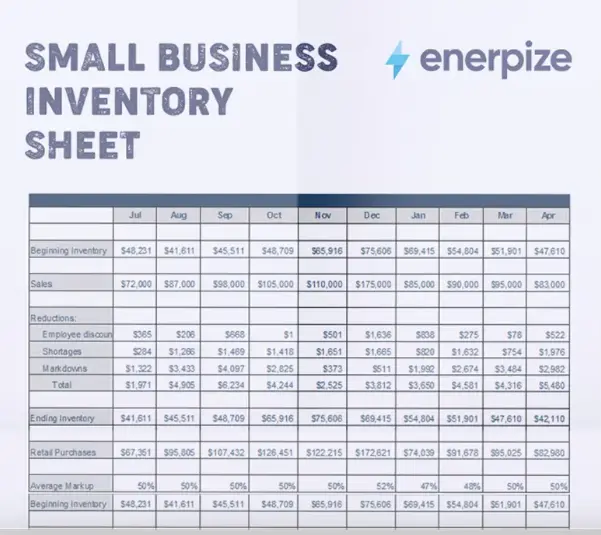
The image we used:
How the tool output:
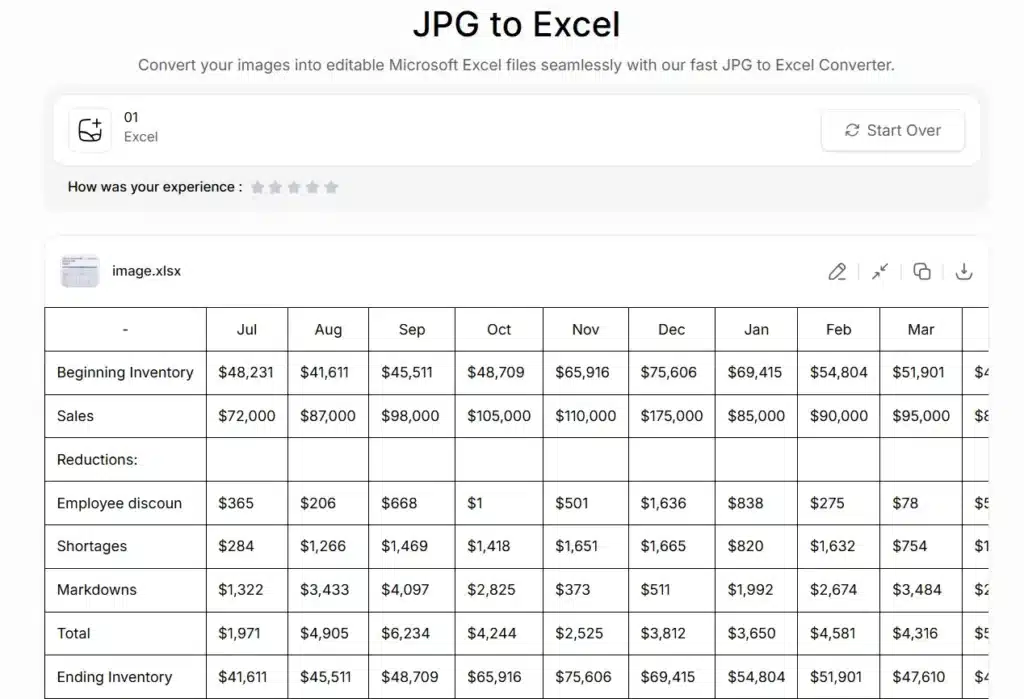
So, that’s how paper-based inventory sheets can be converted into editable worksheets within a matter of seconds to speed up the data entry process.
Closing Thoughts
Processing paper-based inventory sheets for data entry is a really hectic and time-consuming task. You have to manually put in all the effort to enter data printed on paper into an Excel file. However, by utilizing advanced image-to-Excel converters, this process can be automated.
Simply capture a photo of the inventory sheet, upload to the converter, and get results in an editable Excel format. This blog post has explained a step-by-step process along with pictorial demonstrations for a better understanding.
Frequently Asked Questions
-
Can I convert a handwritten inventory sheet into Excel?
Yes, image-to-Excel converters can also scan and convert a handwritten inventory sheet into an Excel file. However, the accuracy solely depends on the clarity of handwriting.
-
How can I reduce the chances of errors during the conversion process?
There are numerous things that need to be done to avoid the chances of errors in the conversion process.
- Always capture and upload high-resolution images into the tool
- Double-check the extracted results
-
Are image-to-Excel converters safe and secure?
Yes, most converters available online are 100% safe, which means they do not store or save any kind of processed data in their internal database.
Maximize Accuracy When Moving Paper Inventory Sheets to Excel
While automation significantly speeds up your workflow, the quality of your digital data depends heavily on the initial input. To ensure a seamless transition from paper inventory sheets to Excel, always prioritize high-resolution image captures in well-lit environments. Shadows or blurry text can lead to character misinterpretation, requiring manual corrections later. By double-checking the extracted data against your original hard copies, you can maintain a 100% accurate inventory database that serves as a reliable foundation for your business operations and financial reporting.
Future-Proof Your Business with Digital Inventory Management
Transitioning your paper inventory sheets to Excel is the first critical step toward a more agile and modern business model. Moving away from physical stacks of paper not only saves physical storage space but also empowers your team with searchable, shareable, and analyzable data. As you embrace these digital tools, you reduce the risk of human error and reclaim valuable time that can be better spent on growth and strategy. Start digitizing your records today to transform your inventory process from a manual burden into a streamlined digital asset.


